Overview

The blog or news section allows you to share updates, announcements, and articles. Regular posting helps keep your website active and improves search engine visibility.


Creating a New Post

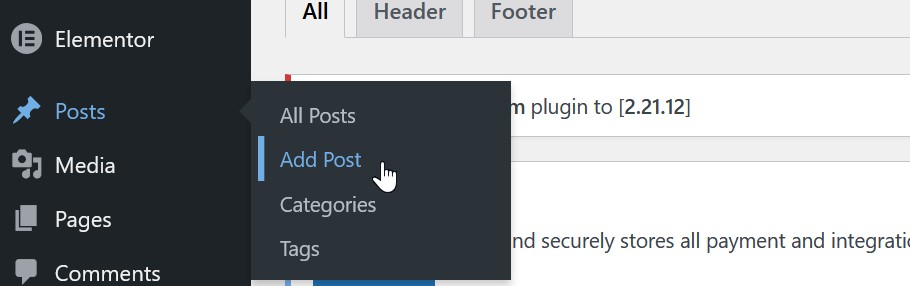
To create a new post, go to Posts → Add New. Enter a title and add your content using the editor. You can include text, images, and other media to make your post engaging.

Adding a Featured Image

Each post should include a featured image. This image represents the post on listing pages and social previews. You can set it using the Featured Image option in the sidebar.
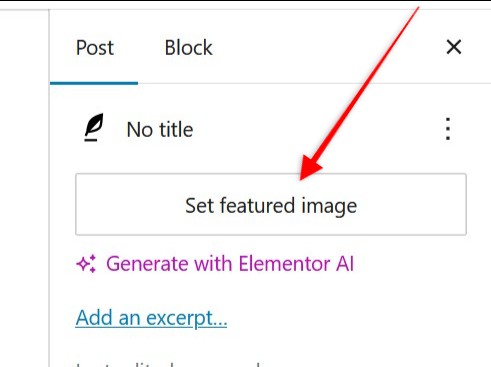
A screenshot of a WordPress post editor shows the "Set featured image" button highlighted by a red arrow, with options like "Generate with Elementor AI" and "Add an excerpt..." visible below. - TrenStar
A screenshot of a WordPress post editor shows the “Set featured image” button highlighted by a red arrow, with options like “Generate with Elementor AI” and “Add an excerpt…” visible below. – TrenStar

Assigning Categories

Categories help organize your posts and make it easier for users to browse related content. Select an existing category or create a new one based on your content.
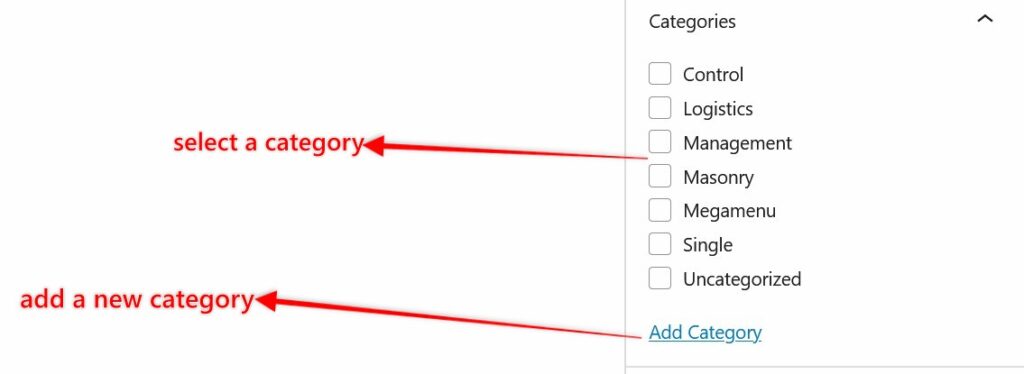
A list of categories with tickboxes, including Control, Logistics, Management, Masonry, Megamenu, Single, and Uncategorized. Arrows label “select a category” and “add a new category” next to “Add Category” link. - TrenStar
A list of categories with tickboxes, including Control, Logistics, Management, Masonry, Megamenu, Single, and Uncategorized. Arrows label “select a category” and “add a new category” next to “Add Category” link. – TrenStar

Previewing and Publishing

Before publishing, use the Preview function to review your post. Once you are satisfied, click Publish to make it live on your website.
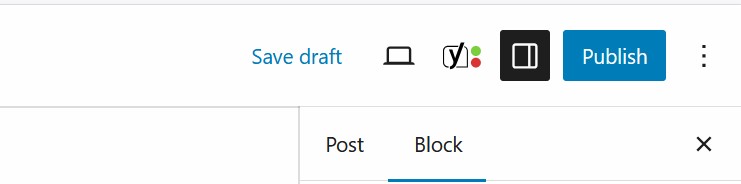
Screenshot of a website editor's top menu bar showing options to "Save draft," "Publish," and toggle between editor views. The "Post" and "Block" tabs are visible below the menu. - TrenStar
Screenshot of a website editor’s top menu bar showing options to “Save draft,” “Publish,” and toggle between editor views. The “Post” and “Block” tabs are visible below the menu. – TrenStar

Editing Existing Posts

If you need to update a post, go to Posts → All Posts, select the post, and click Edit. After making changes, click Update to save them.


A computer cursor hovers over the "Edit" option in a menu below the post title "Proin at elit nec purus interdum," with other options "Quick Edit," "Bin," and "View" visible. A tick box appears to the left. - TrenStar
A computer cursor hovers over the “Edit” option in a menu below the post title “Proin at elit nec purus interdum,” with other options “Quick Edit,” “Bin,” and “View” visible. A tick box appears to the left. – TrenStar