Updating pages (edit, preview, update, and revision rollback)
Overview
Pages are used for static and dynamic content such as your homepage, about page, services, or contact information. From time to time, you may need to update text, images, or layout elements to reflect new information.
Editing a Page
To begin editing a page, log in to your dashboard and navigate to Pages → All Pages.
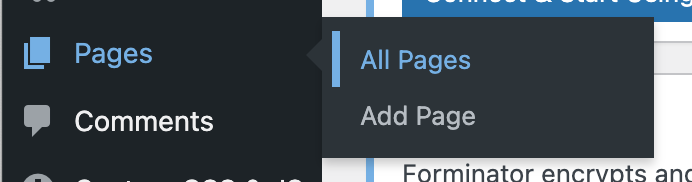
From here, you will see a list of all available pages on your website. Hover over the page you wish to update and click Edit or Edit with Elementor.
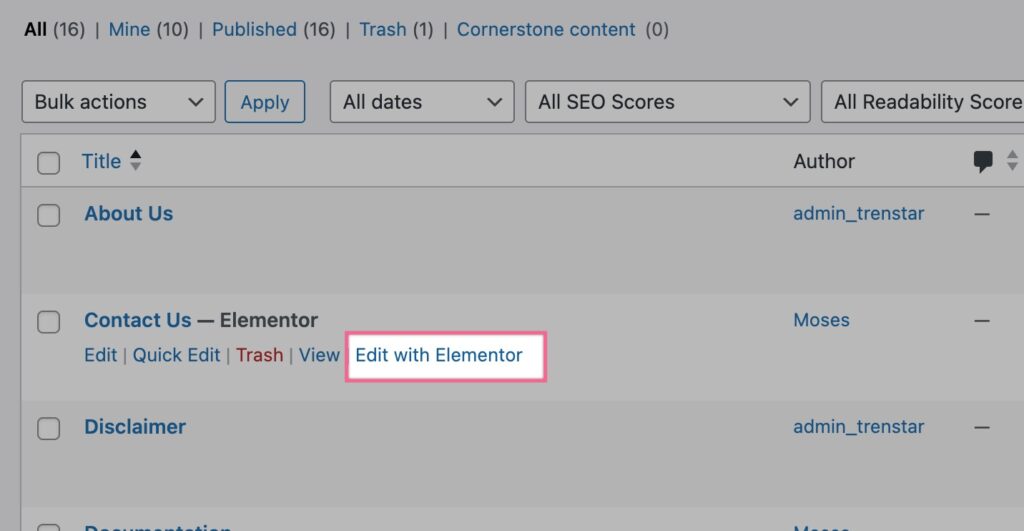
Once inside the editor, you can modify text, images, and layout blocks. The editor is designed to be user-friendly, allowing you to click directly on elements and update them as needed.
Previewing Changes
Before applying any updates, it is strongly recommended to preview your changes. The Preview option allows you to see how your page will appear to visitors without making the changes live.
This step is important for checking:
- Formatting and spacing
- Image alignment
- Mobile responsiveness
Taking a moment to preview helps avoid publishing errors.
Updating a Page
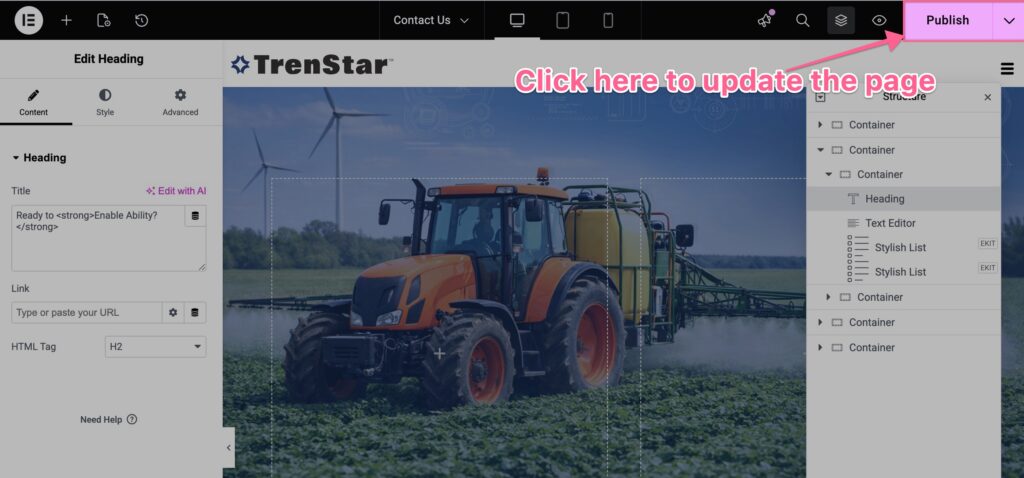
After reviewing your changes, click the Update/Publish button to publish them. The updates will immediately reflect on the live website. It is good practice to double-check the live page after updating to ensure everything displays correctly.
Restoring Previous
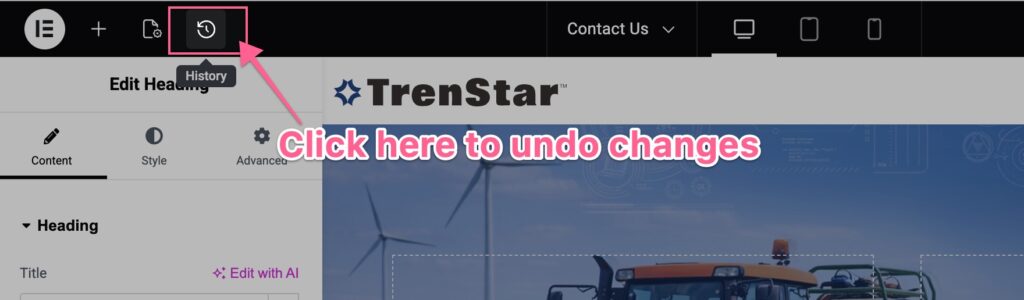
Versions (Revision Rollback) WordPress automatically saves previous versions of your pages.
If a mistake is made or content is accidentally removed, you can easily restore an earlier version. Within the page editor, locate the Revisions section in the right-hand panel. From there, you can browse previous versions, compare changes, and restore a selected version if needed.
This feature provides a safety net and ensures that no content is permanently lost.